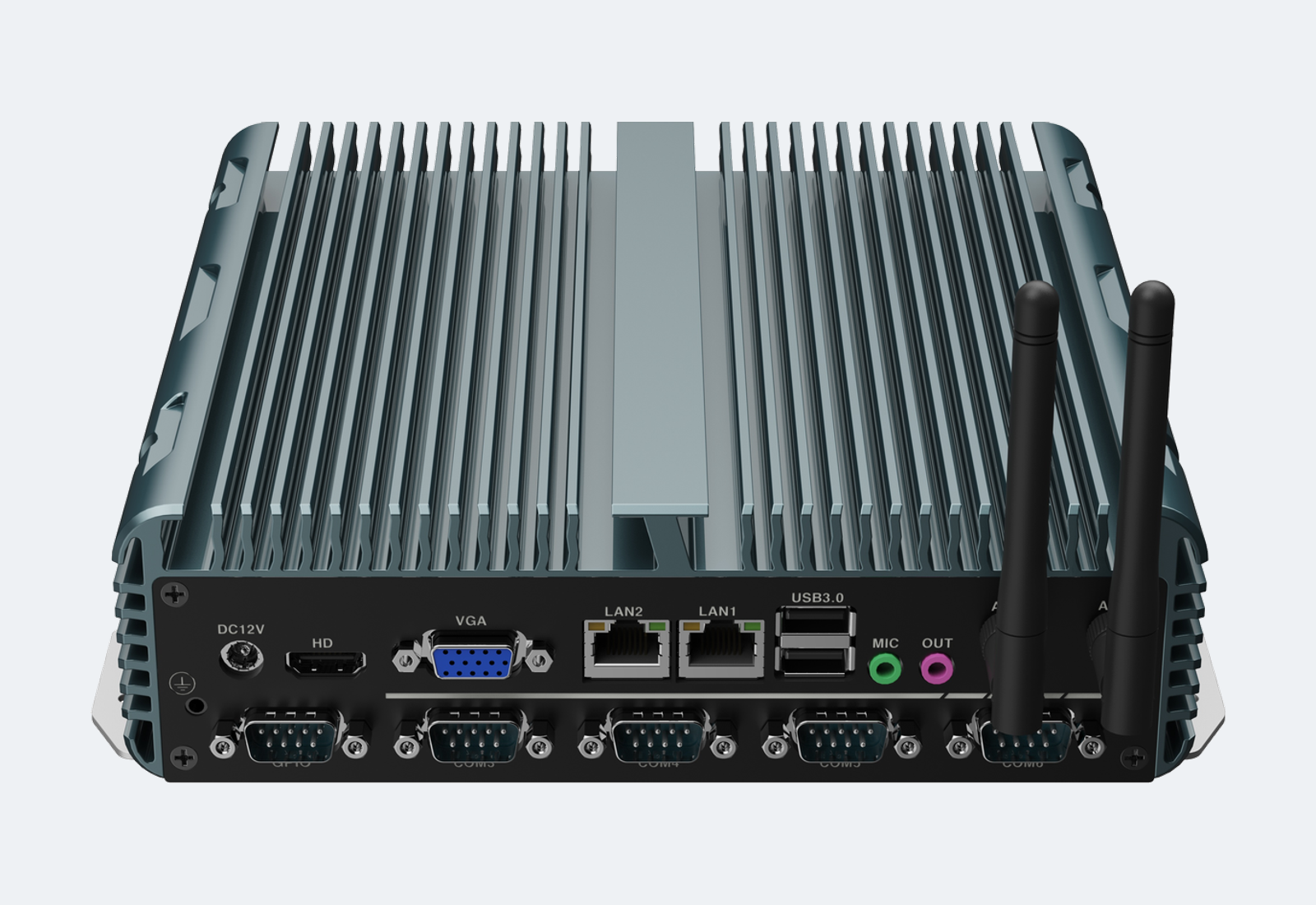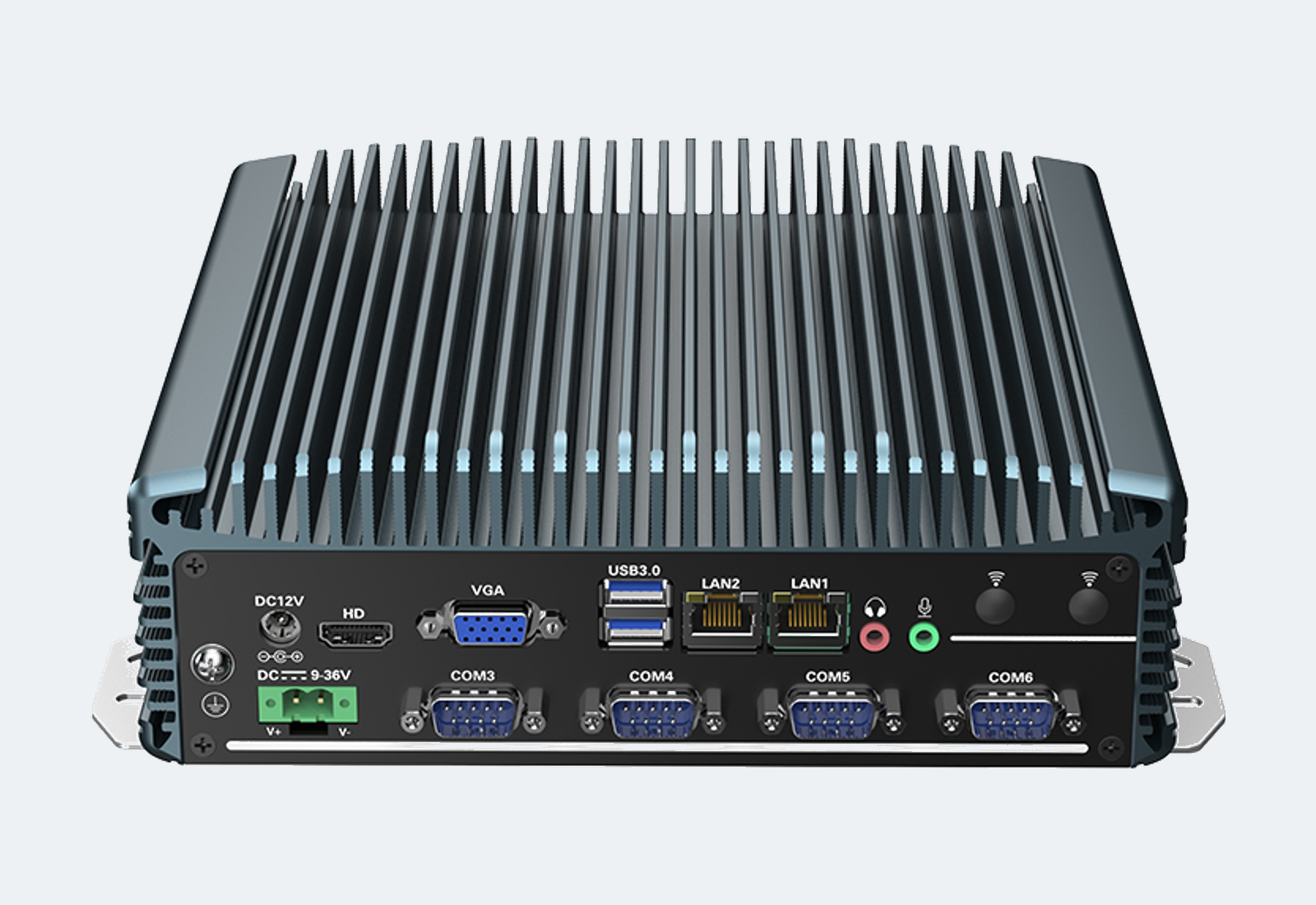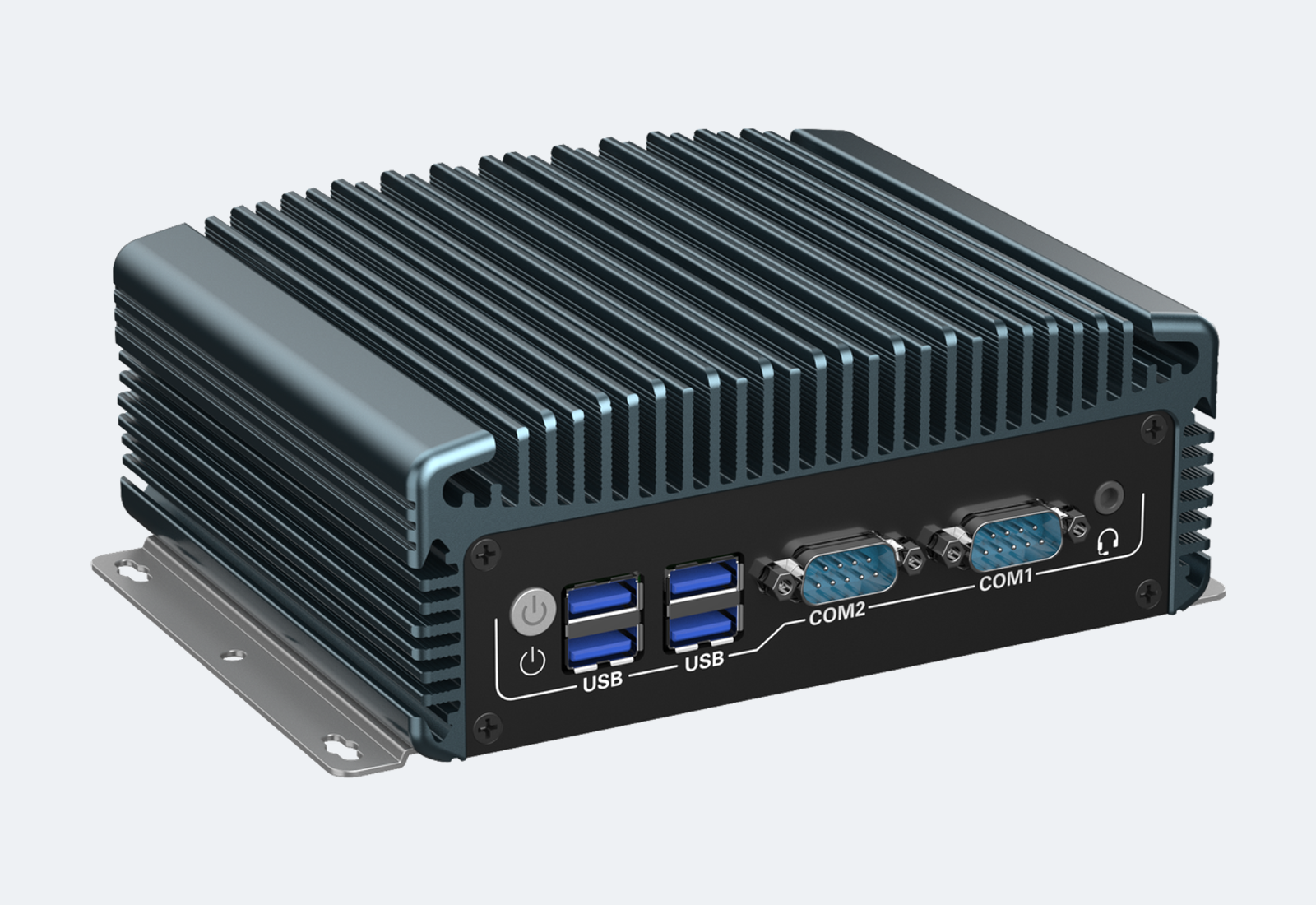
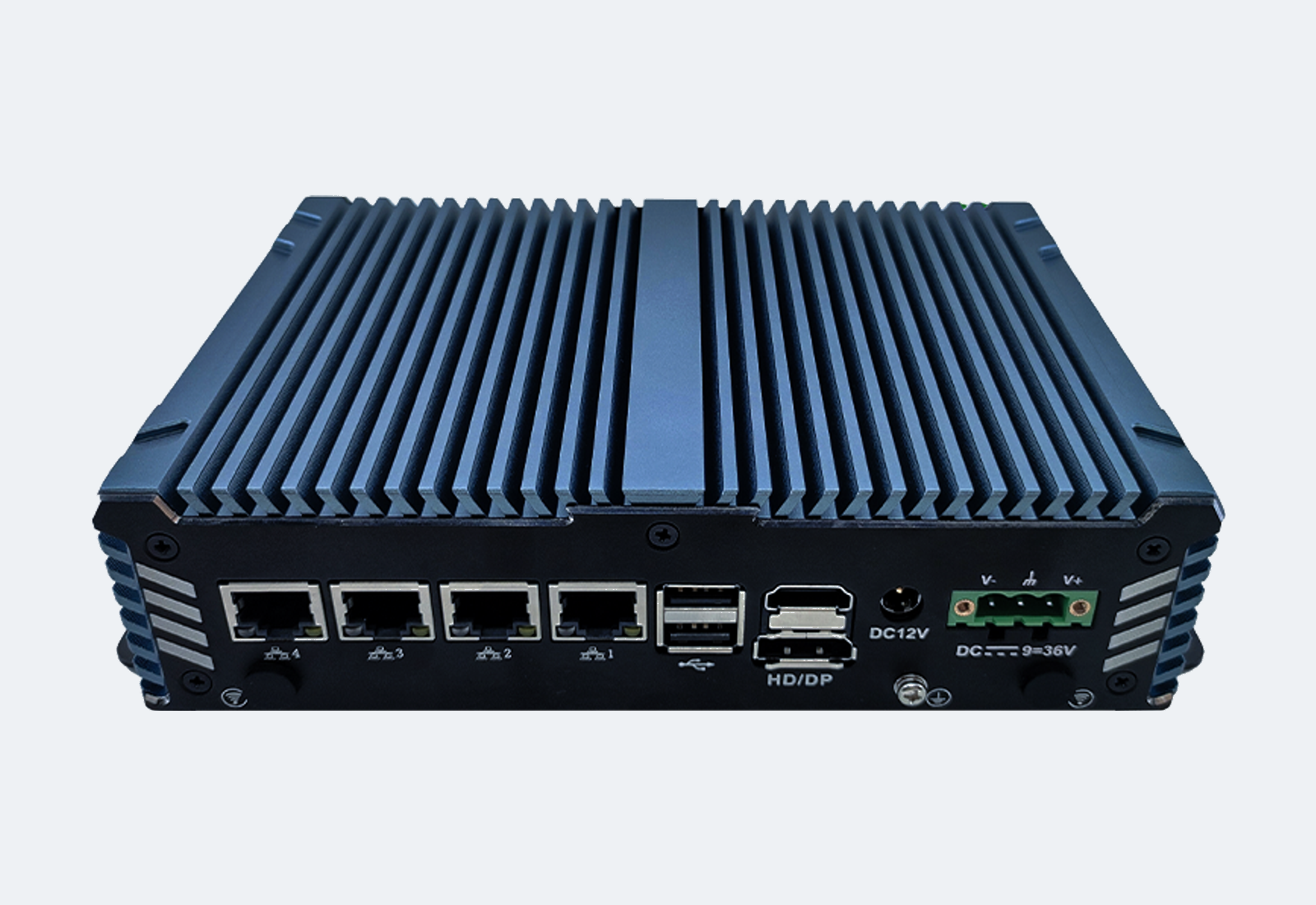
Industrial computer selection often succeeds or fails at the I/O level. A system with enough CPU performance can still be unsuitable if it lacks the required LAN, COM, USB or display interfaces.
The safest approach is to build an I/O map before confirming the model. List every connected device, communication protocol, connector location and expansion requirement. Then select the computer that fits the integration plan.
1. LAN Ports: Network Segments, Cameras and Gateways
Dual LAN may be enough for many automation systems that separate equipment networks from factory networks. Multi-LAN systems are useful for machine vision, industrial gateways, network appliances and applications that need isolated network segments.
Confirm speed requirements as well as port quantity. Some projects need Gigabit LAN, while camera or high-throughput systems may benefit from 2.5G LAN. Also confirm chipset preference when software or drivers depend on a specific network controller.
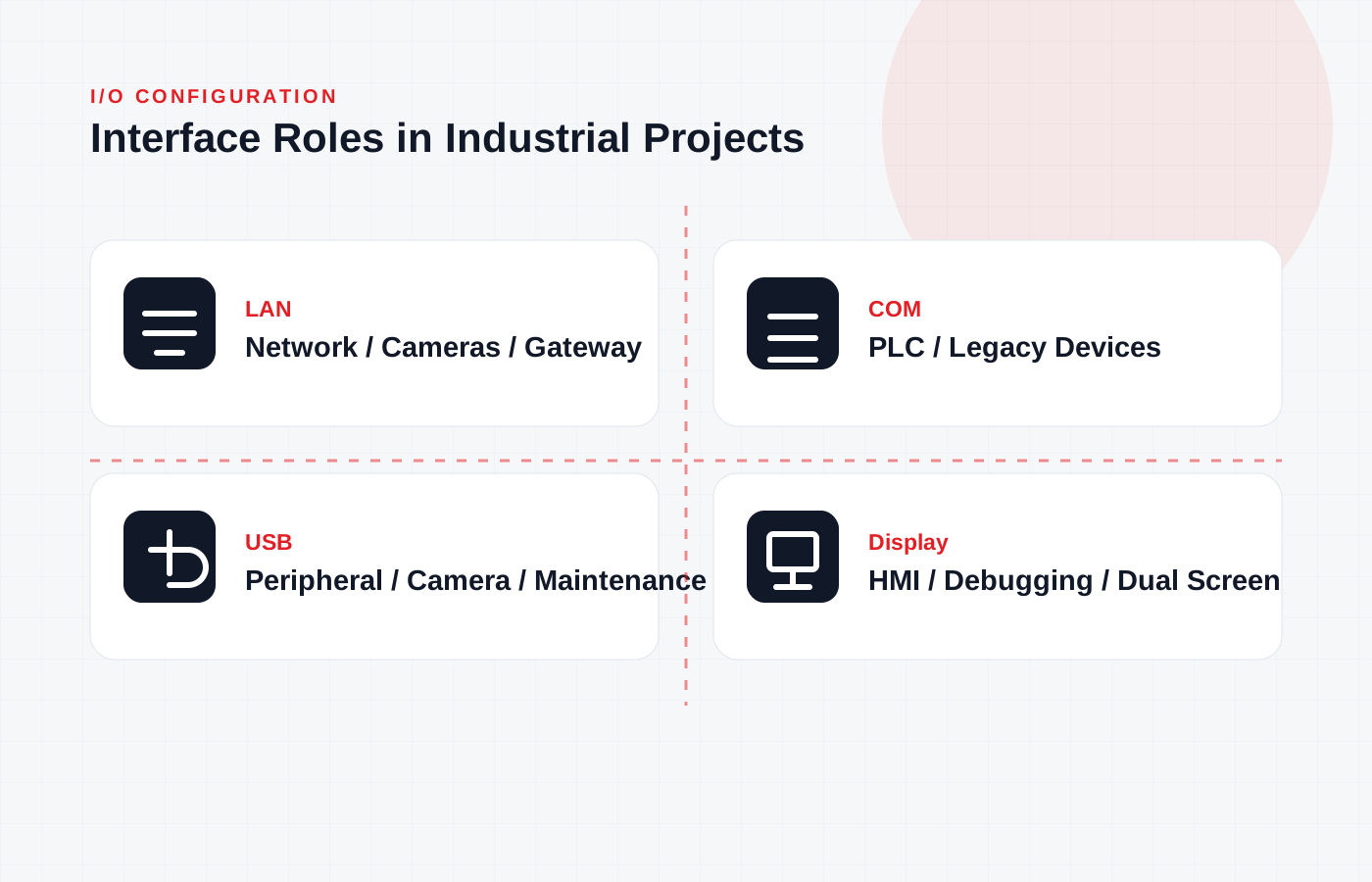
2. COM Ports: Legacy Devices and Industrial Protocols
Serial ports remain important for PLCs, meters, scanners, motion controllers and legacy equipment. Count the ports and confirm the electrical mode: RS232, RS485 or RS422.
If the requirement includes multiple RS485 devices, check grounding, cable length, termination and whether an isolated serial solution is needed. USB-to-serial adapters can help during testing, but built-in COM ports are usually more stable for production equipment.
3. USB Ports: Peripherals, Cameras and Maintenance
USB 2.0 is often sufficient for keyboards, dongles and basic peripherals. USB 3.0 is more suitable for cameras, data capture devices and higher-bandwidth accessories.
Check both front and rear access. Maintenance teams may need a front USB port, while permanent peripherals may need rear ports with cable retention and enough spacing.
4. Display Output: HMI, Debugging and Dual Screens
HDMI and VGA are common in industrial projects, while DP may be required for newer displays or higher-resolution systems. For panel PCs, also confirm whether an external display is needed for debugging or extended dashboards.
When a project needs dual display, validate the operating system, driver and resolution combination before batch deployment. Display support can differ by CPU platform and board design.
Buyer Checklist
- Number of LAN ports and required speed
- Separate network segments or camera network requirements
- COM quantity and RS232 / RS485 / RS422 mode
- USB 2.0 vs USB 3.0 bandwidth needs
- Front access vs rear permanent cabling
- Display output type and resolution
- Expansion slots for WiFi, 4G, GPIO or additional I/O
- Cable routing, connector clearance and service access
- Operating system driver support
- Future devices likely to be added after installation